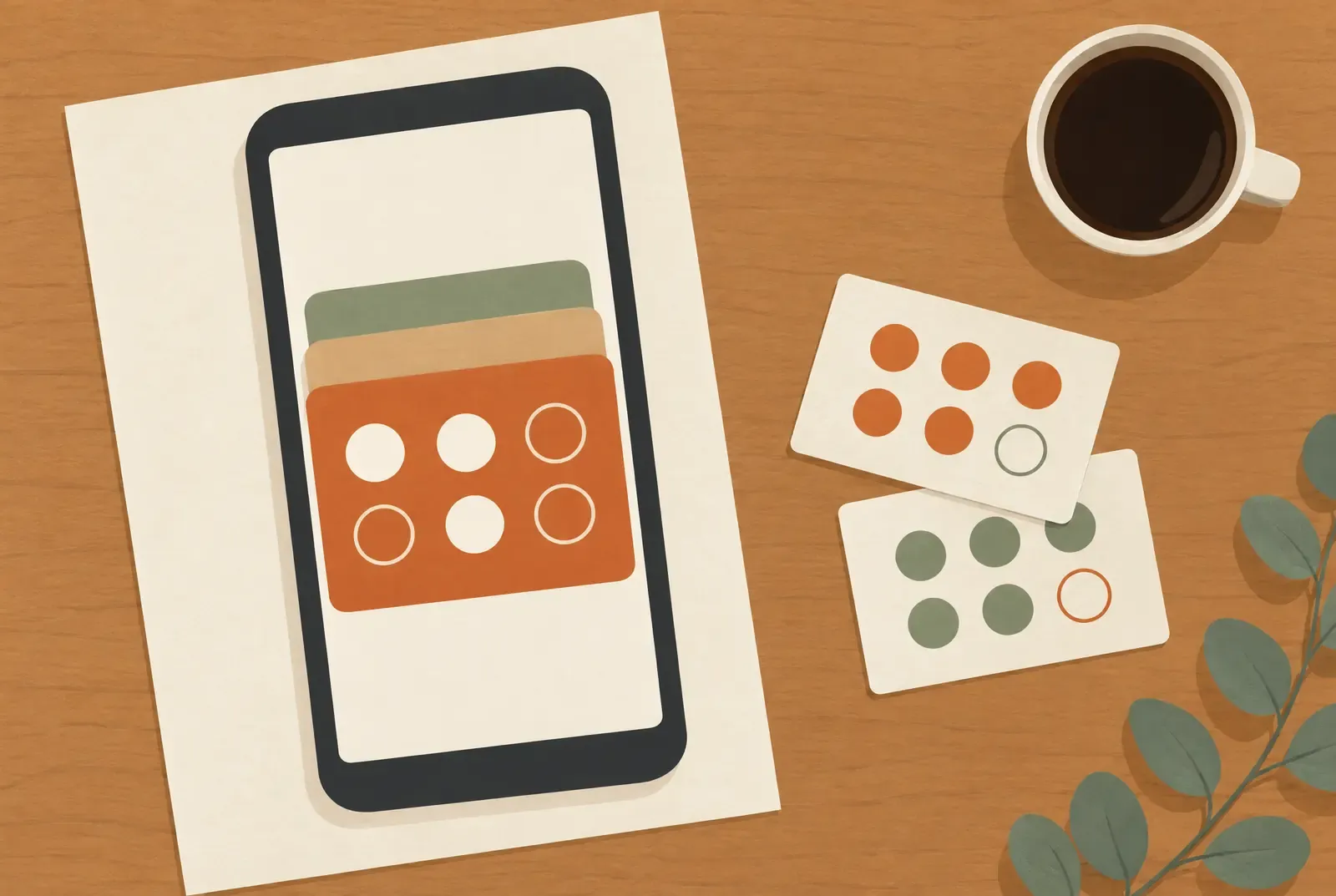
A customer card in Google Wallet gives your business a place on your customers’ phones. With Treubar, it is a stamp card showing your logo, the current stamp count and the reward. On their next visit, the customer opens the card and your team scans it to add a stamp.
Getting started on Android is quick once you know the requirements. There is no Treubar app for customers, and none is needed. What customers need is Google Wallet with their Google account. This guide shows you how to answer these questions at the counter in a few sentences.
What the customer card does
Google Wallet stores the digital pass. Treubar runs the loyalty programme behind it: issuing cards, counting stamps and managing rewards. The card is not a payment method. Customers pay for their purchase as usual and collect stamps according to the rule you have set.
A saved barcode on its own is not a stamp programme. What matters is that the card stays connected to the stamp count. Google documents customer cards that can be updated. That is how the Treubar card works: the count on the pass follows your stamps. See the Wallet card page for everything the card can do.
Prepare Android: account, app and compatible device
According to Google’s requirements, customers need a Google account, Android 9 or later, and up-to-date Google Play services and Wallet app. If Google Wallet is missing, the customer installs it once from Google Play. A Google account alone is not enough. On an iPhone, Apple Wallet is already included; you can explain this difference to new customers in one sentence.
Start by asking whether the customer can open Google Wallet. If they have several Google accounts, they pick the one they want to keep their personal cards in. That makes the card easy to find later. Customers enter their own login details; your team does not need them.
On a Samsung phone, the Treubar card also uses Google Wallet, provided the device meets its requirements. No separate Samsung Wallet pass is needed, and Treubar does not issue one. Devices without suitable Google services cannot use Google Wallet.
NFC for payments is a separate issue. Google explicitly lists NFC and other payment requirements for contactless payments. For stamping, your team scans the pass with a camera. The customer does not need to add a bank card or set up Google Pay as a payment method.
Save the first card together
The first registration is a short process you finish together. Give your team the guide to adding a card as a reference.
- The customer scans your business’s QR code with their phone camera.
- On the page that opens, they enter their first name, last name and date of birth. All three fields are required.
- They choose “Add to Google Wallet”, then confirm using the corresponding button on the next page.
- Google handles saving the card. The customer then finishes on the Treubar page by confirming that they have saved it.
- Ask them to open the card directly in Google Wallet once. They will know where to find it next time.
The customer needs no Treubar customer account, Treubar password or email address for this. The Google account is part of using Wallet. If someone still needs to set up Google Wallet, mention it right at the start so there are no surprises.
The QR code at the counter is for getting the card. On later visits, customers simply show their saved pass. They do not need to register again to collect stamps.
Add stamps, check the result and redeem a reward
Your team opens the Treubar app on an iPhone or Android phone and scans the pass. You need no additional scanner or new point-of-sale system. The stamping instructions explain the steps.
The stamp count updates automatically. Depending on the device and connection, the new number sometimes appears on the pass a little later. Without a connection, the app queues the scan and sends it when connectivity returns. If the customer’s number still looks unchanged, check the team app: it shows what has been recorded. There is no need to scan again.
When the card is full, your team asks whether the customer wants to use the reward now or save it. The app offers redemption with a new stamp, saving the reward with a new stamp, or redemption without another stamp. Redemption requires an internet connection and cannot be undone. Scanning alone does not redeem a reward. Take a quick look at the action and quantity before confirming; the redemption guide explains the choices.
An accidentally added stamp is easy to fix. On Start and higher plans, admins and managers can correct the count. Staff with the Scanner role cannot.
A visible update is not a campaign notification
Treubar campaign messages currently appear in Google Wallet’s card details, without a notification banner. Last-minute offers reach Android customers when they open their card. Plan them with that in mind.
This is how Treubar works today, not a general statement about Google Wallet. Google provides notification interfaces, with their own settings and delivery limits. For Google Wallet, Treubar currently uses the card details.
In Apple Wallet, a Treubar campaign can trigger a notification, depending on settings and delivery. Campaigns are included from Pro, not Start. If you serve both groups of customers, write messages that still make sense when someone opens the card later. See Customer card in Apple Wallet for the iPhone process.
New phone: check the account first
Google distinguishes passes tied to a device from those tied to an account. For account-linked loyalty cards, Google describes transfer when signing in with the same Google account. If the customer uses the same Google account on the new phone, look in their Wallet cards first.
A fresh QR registration scan on the new phone creates a new, empty Treubar card. The old stamp count does not move across automatically. The same applies when switching between Google and Apple.
If the old card is missing, write to support@treubar.de. We help you clarify the situation. On Start and higher plans, admins and managers can then enter the verified stamp count on the new card. Find out which card is involved before you tell the customer anything.
Handle your logo and customer data thoughtfully
Design a card that regular customers recognise at a glance: a clear logo, readable colours and a short reward description. Treubar offers 72 templates and custom images; branding is included in Free. Check the preview and then the saved card. The artwork should support the important information rather than obscure it.
Registration is not anonymous just because it needs no Treubar customer account. Alongside the required details, Treubar processes card identifiers and stamp and redemption records. Google operates the separate Wallet service. Keep internal notes and support requests to the information the particular issue needs. “No email required” means fewer details, not no data processing.
Get your business started
Starting with Treubar takes a few steps: set your stamp rule and reward, design the card with your logo, and practise saving, stamping and redeeming once with your team. Your customers need no app, your team stamps with the Treubar app, and our personal email support is there when you have questions. Free includes one card, one location and up to 20 issued customer passes. This allowance is a total, not a monthly amount.
Start costs €7.99 per month or €79.90 per year and offers unlimited customer passes, but no campaigns. Pro costs €39 per month or €390 per year; Max costs €69 or €690 respectively. All plan prices quoted include VAT and are current as of 5 November 2026. You can find the right scope on the pricing page.
If you want to see providers side by side, the digital stamp card provider comparison helps. Once the process fits your shop, you can set up your card right away.